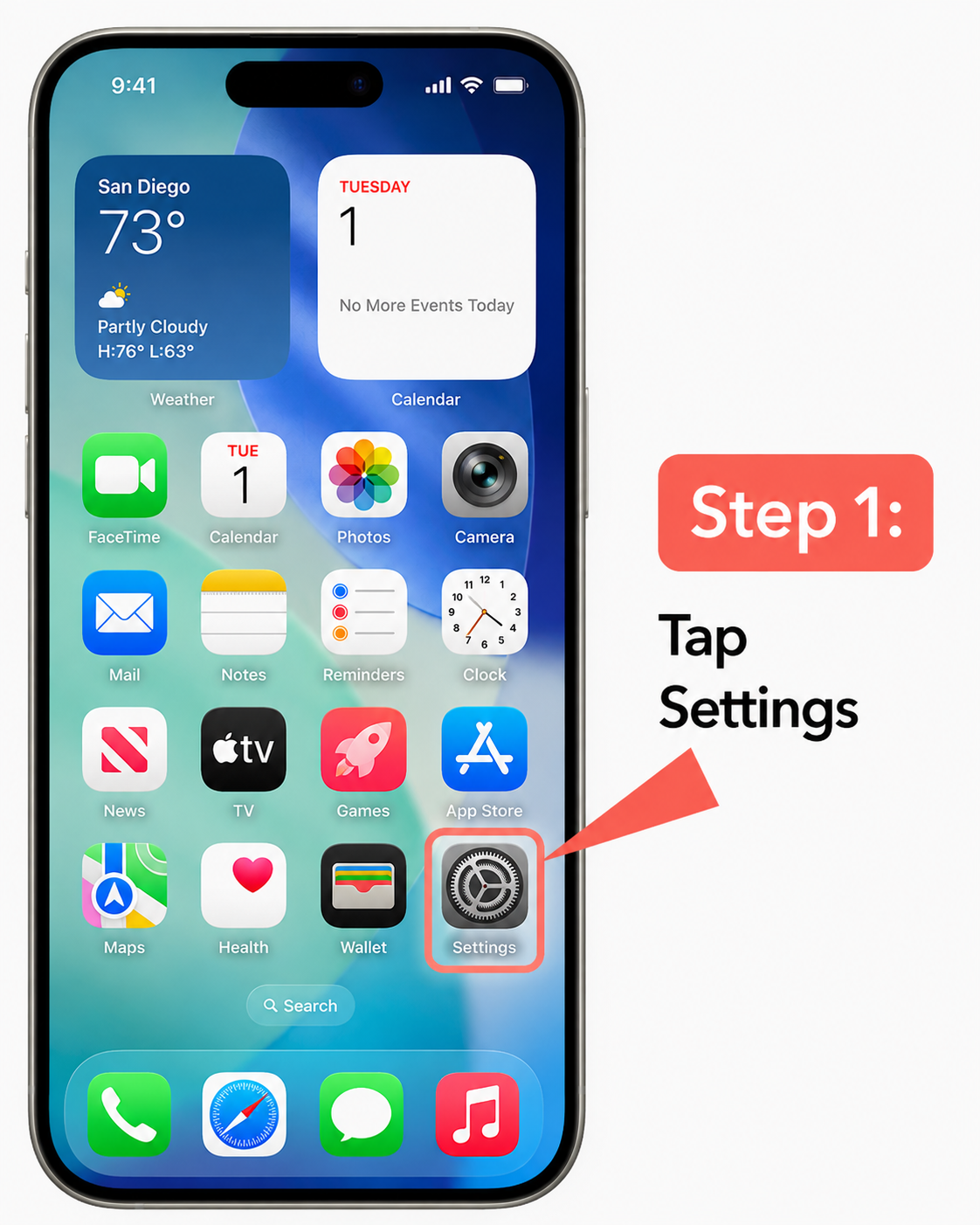
Step 1
Open Settings
From your iPhone home screen, tap the Settings app.
This is where your installed SIMs, eSIMs and mobile data settings are managed.

The most common reason for an eSIM not to work properly on iPhone is that Data Roaming is switched off for that eSIM in Settings.
Your eSIM may appear to connect to a mobile network and show signal, but you may then have an extremely slow internet connection or no mobile data connection at all. Fortunately, this is usually very quick to check and fix.
Important: Data Roaming needs to be switched on for your Simpal travel eSIM. The steps below show exactly where to find the setting.
Follow the screenshots below. The wording in iPhone Settings can vary slightly depending on your iPhone model, region and iOS version.
From your iPhone home screen, tap the Settings app.
This is where your installed SIMs, eSIMs and mobile data settings are managed.
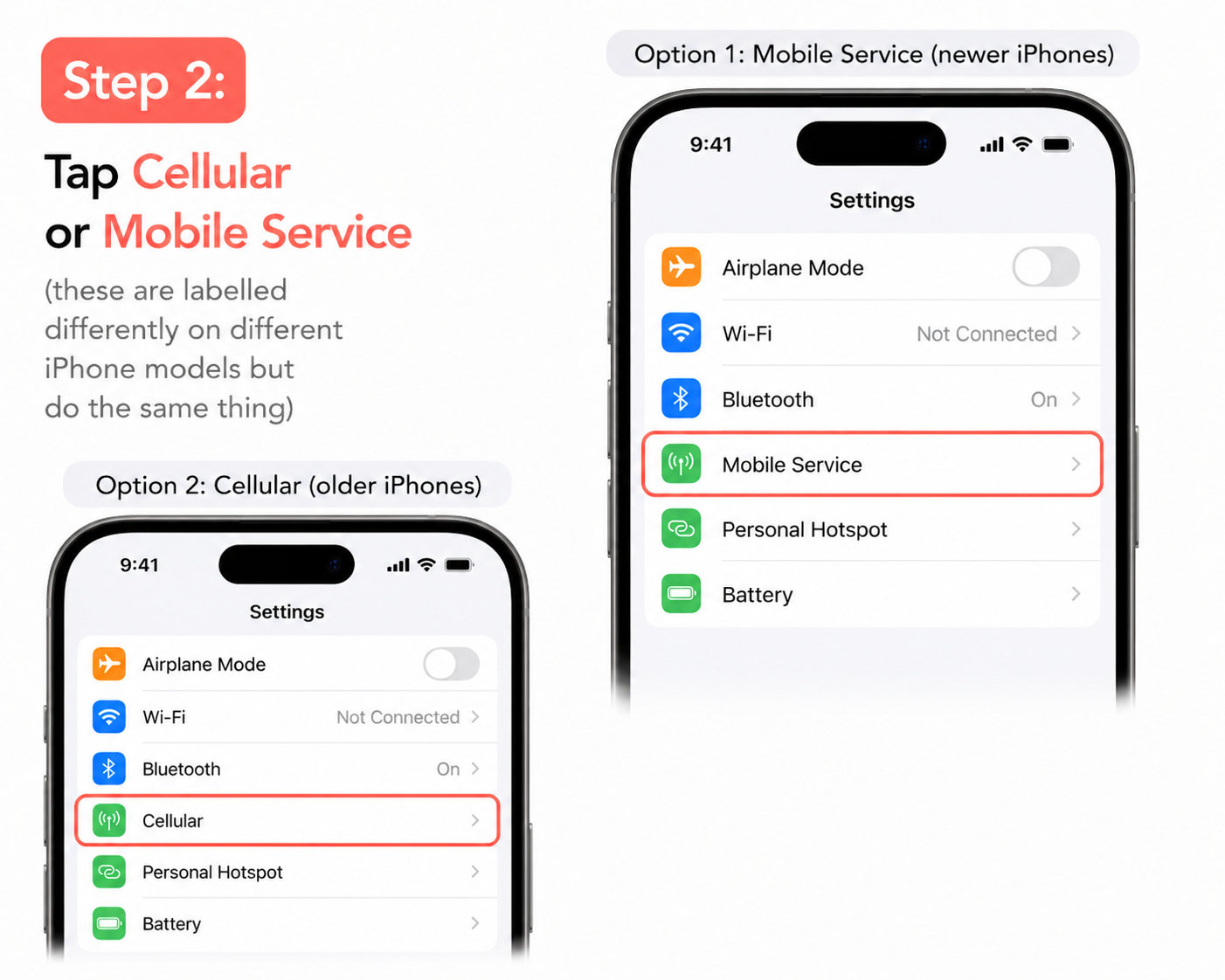
In Settings, tap Mobile Service. On some iPhones this option is instead labelled Cellular.
The name varies between iPhone models, regions and iOS versions, but both options take you to the same area where your mobile network and eSIM settings are managed.
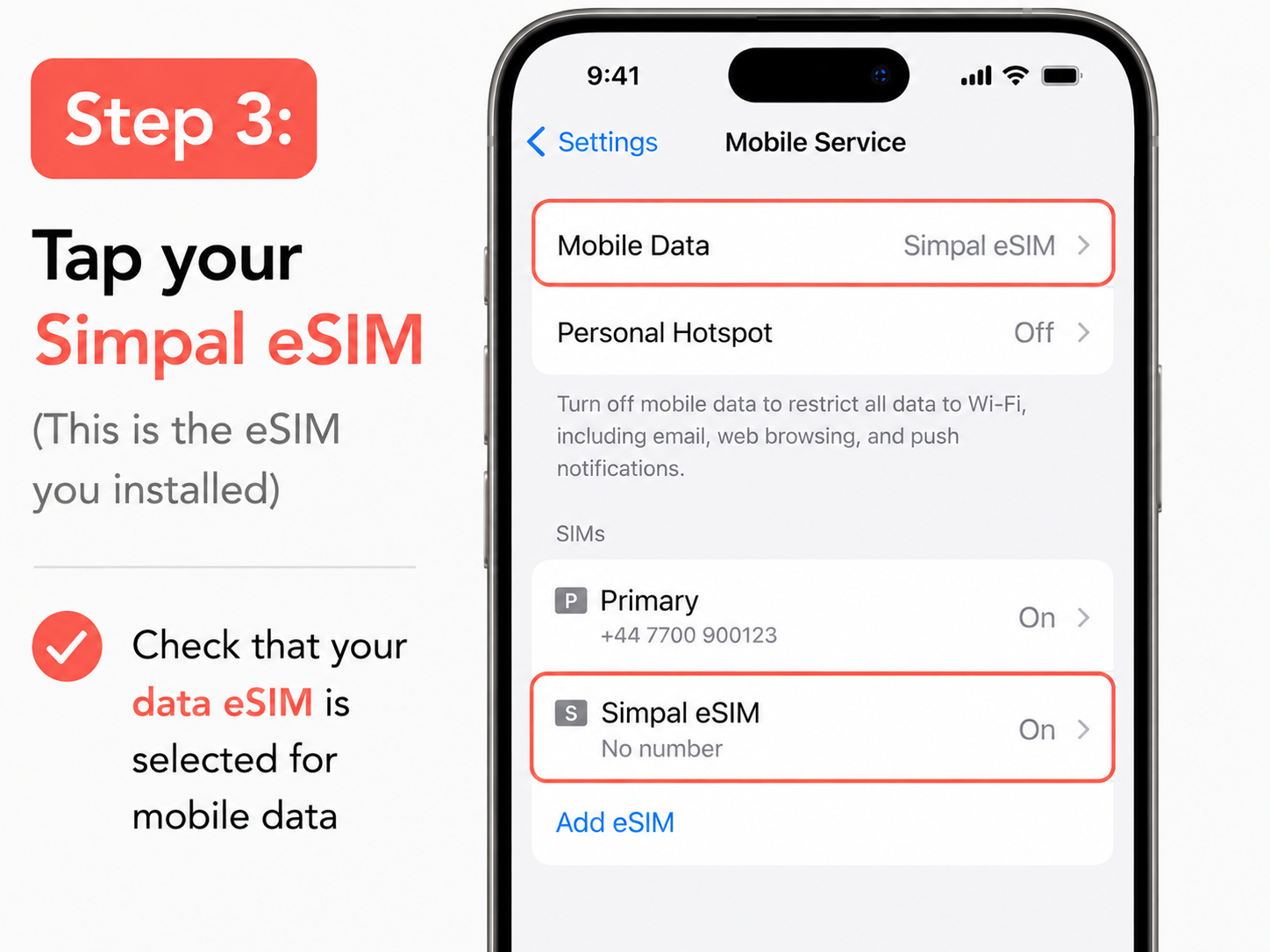
Under SIMs, tap the eSIM you installed when setting up your Simpal plan.
Your eSIM will not usually be named “Simpal eSIM” automatically. It may be labelled Secondary, Travel, or have another name assigned by the network.
If you want to make it easier to recognise, you can rename the eSIM. Open the eSIM, tap Cellular Plan Label or Mobile Plan Label, then choose Custom Label and enter a name such as Simpal eSIM.
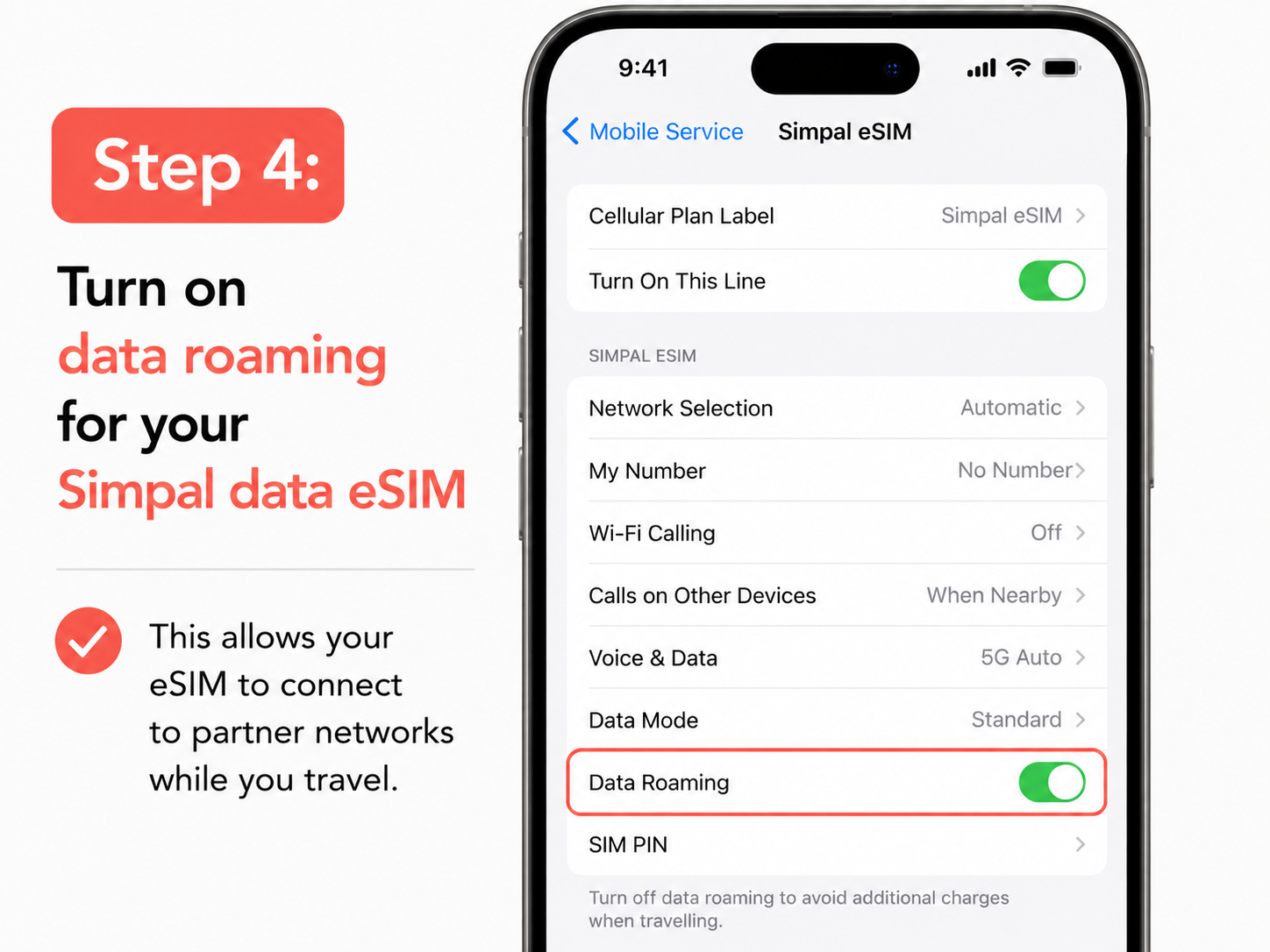
Make sure Turn On This Line is enabled, then switch Data Roaming on for your Simpal data eSIM.
Data Roaming allows your travel eSIM to connect to the local partner networks included with your Simpal plan while you are abroad.
Your Simpal eSIM should normally connect automatically to a supported local network. Give it a minute or two to establish a mobile data connection.
If Data Roaming is already on but your eSIM still has no internet connection, these simple steps resolve many connection issues.
Contact Simpal support and include your order reference, destination, iPhone model and, if possible, screenshots of your Mobile Service or Cellular settings. This helps us identify the problem quickly.